Moving files in the Lab Environment
Moving files is a task that may become relevant, either to extract logs from the lab environment or to push configurations or scripts to virtual machines in the environment. To move files between your local machine and the network devices in the lab requires two steps, that are done sequentially depending on which way you are moving files The first of these steps is moving files between your local machine and the virtual machine that is hosting the GNS3-server. The second steps involves moving files from the virtual machine to the docker-container that is running the network device you want the files to/from.
Moving files from a local machine to the virtual machine
There are many ways one could move files to/from the virtual machine, as the virtual machine has direct internet access. The more readily available, given your access to the machine is to utilize secure copy (scp), which is an SSH-based CLI copy-tool preinstalled in most WSL/Linux/MacOS shells.
The general syntax for scp:
More information on scp is available here
Another tool that I find easy to use is magic-wormhole, a CLI-tool that creates ad-hoc file-transfer tunnels based on simple readable phrases, instead of relying on passwords. Magic-wormhole does however require installation on both your local- and virtual machine and might therefore be less desirable. Magic-wormhole github repo
Moving files between Virtual Machine and Docker Containers
As docker-containers are not accessible from the internet, nor do they have internet access, you must move files to/from the containers as a separate step. This can be done utilizing the "docker cp" (docker copy) cli-tool on the virtual machine.
To utilize the docker cp tool, first find the ID of the container you want to copy to/from, using:
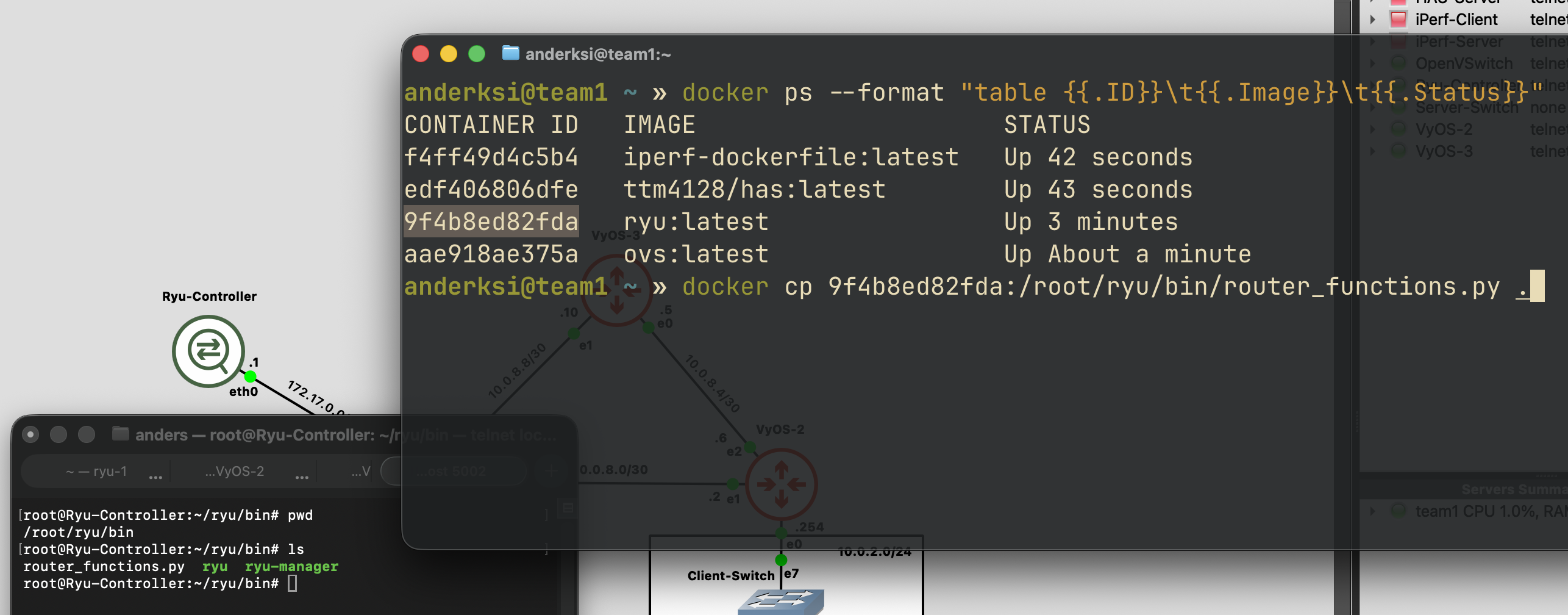
When you find the container you want to copy to/from, use docker cp. The direction of the copy is dependant on the position of the arguments, similar to how scp works. E.g: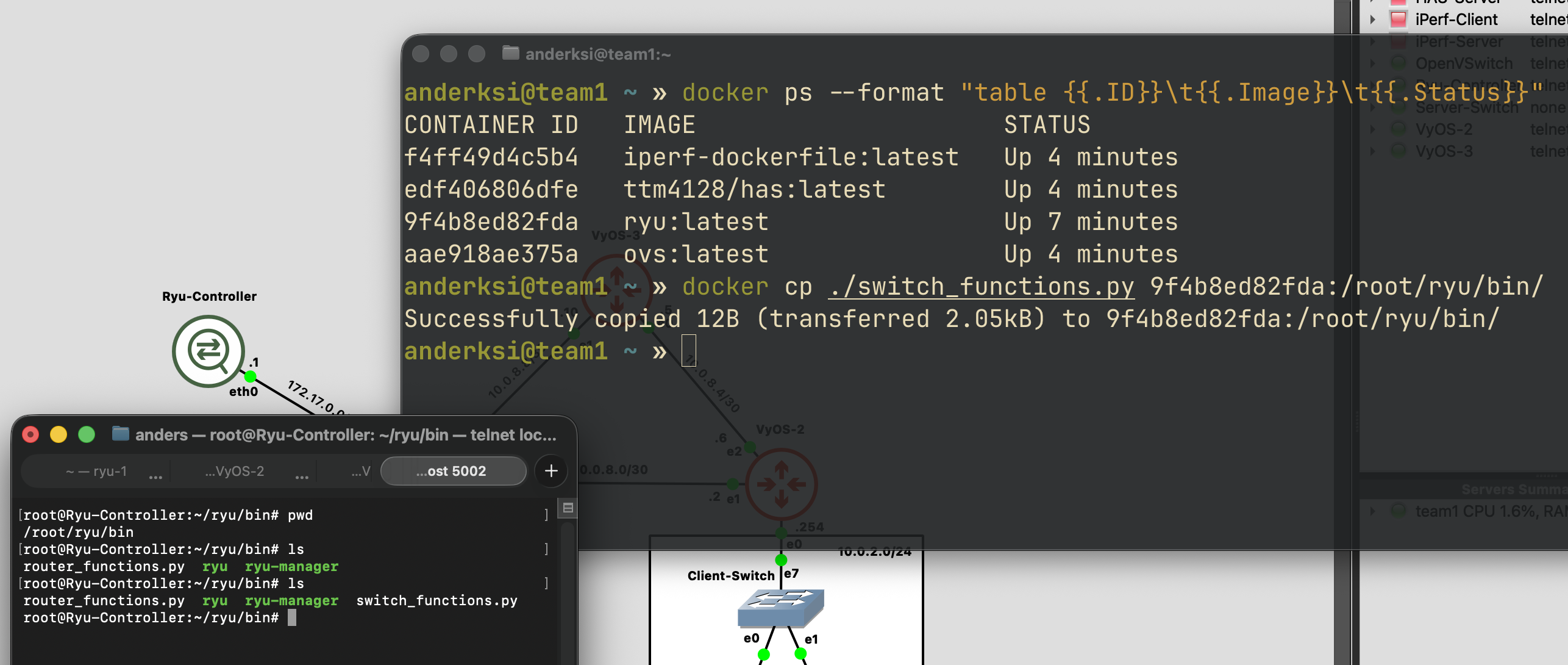
Text copy
An easy way to move code, for instance RYU-scripts into a container running in the lab is to copy the code from a local terminal into a text-editor on the target container. Most of the containers come with the text editor "vi", which although very lightweight suffices for this usage.
On the container, open "vi" with the command vi FILENAME, press "i" to enter insert mode, copy in the code/text, and save/exit vi by pressing escape, typing ":wq", and pressing enter.
The code or text should now be available in the container.